Full Details: Performance
- Standard Workstation Diagnostic: Free for life (limited)
- Advanced / Max Workstation Diagnostic: Full Access only 4.99$ / month 30 days trail
Standard Checking
Workstation Diagnostic Details
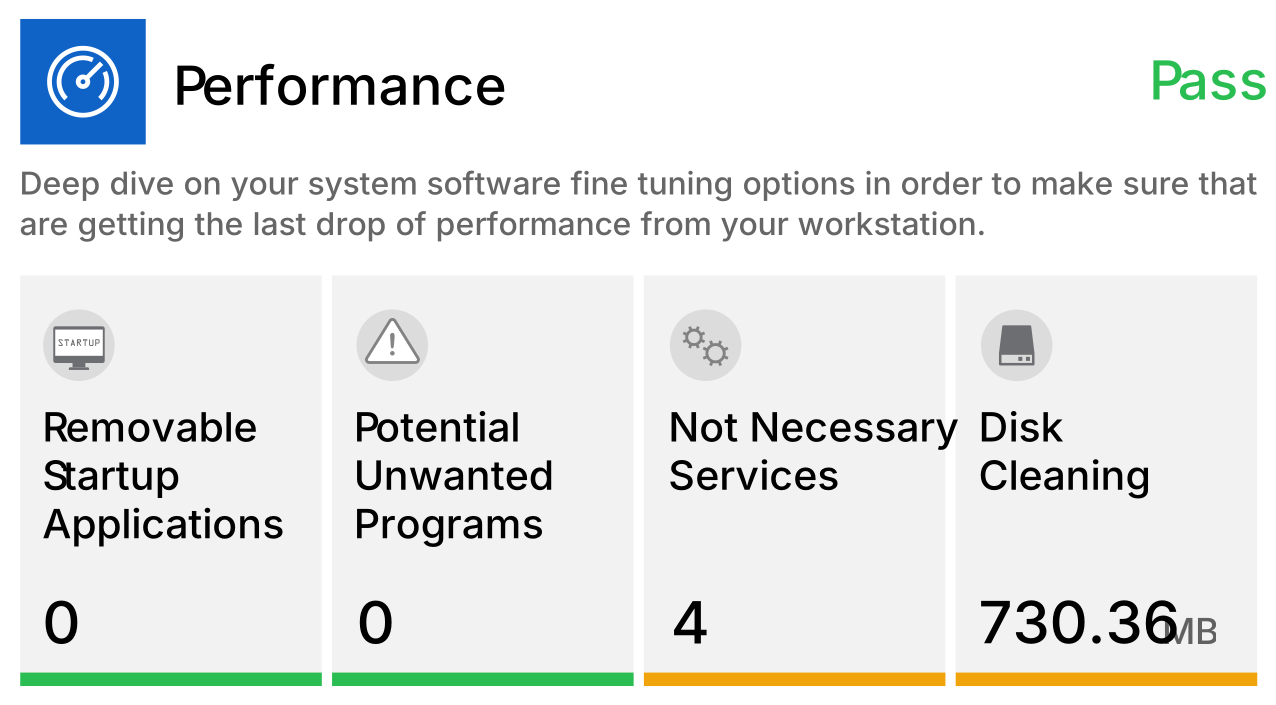
Removable Startup Applications (1)
Windows version validation and operating system updates checking.
Not-needed Services (730 MB)
Applications that may display unwanted advertising or may just come bundled by your system.
Potential Unwanted Programs
Applications open to exploitation by targeting weaknesses or software gaps in order to gain unauthorized access or compromise your system.
Disk Cleaning (OFF)
Files that we cam remove in order to free up some space on your computer.
Advanced Checking
Workstation Diagnostic Details
Turn off Animated elements inside windows (ON)
Slow-fade effect on buttons and tabs in dialog boxes, the cyclic pulsating effect on the default button, and the fading scrollbar arrows.
Disable Animations in taskbar (ON)
Slide effect when dragging icons on taskbar or fade and slide effect when opening taskbar thumbnail previews.
Enable Windows Startup delay (ON)
After Windows starts up, it waits about ten seconds before opening your startup programs. This “startup delay” lets your desktop and Windows services finish loading, making everything run a bit smoother.
Disable Windows Peek (OFF)
Peek allows you to see taskbar thumbnail live previews of open items when you hover over their taskbar thumbnail.
Hide Fade or Hide windows into view (OFF)
Application windows will fade away into a most transparent glossy outline, this visual effect will use system resources.
Fast Startup (ON)
Fast startup is a feature that provides a faster boot time when starting up your PC.
Power Profile (ON)
A power plan profile is a collection of hardware and system settings that manages how your computer uses power. Power plans can help you save energy, maximize system performance, or achieve a balance between the two.
Hide Windows Animation (ON)
Animation effect occurs when a window is minimized or maximized in windows. This effect uses system resources.
Hide Windows Transparency (ON)
Feature that applies glass look to windows borders, heavy to run on older hardware.
Enable Windows Tips (OFF)
Settings app includes tips with embedded videos to highlight different ways you can use related features within the pages you view.
Max Checking
Workstation Diagnostic Details
Disable Background Apps (ON)
Background apps are running continuously in the background making your computer slower.
Disable Shadows under mouse pointer (ON)
Showing a shadow under your pointer may cause your computer to run slower.
Hide Shadows under windows (ON)
Showing shadows under the windows is a visual effect the may cause your computer to run slower.
Hide translucent selection region (ON)
The translucent selection rectangle is the box you see when you left click and hold, and then drag the pointer over items to select them when you release the left click; turning it off will improve your performance.
Hide window contents while dragging (ON)
You can set Windows 10 to show either the contents or outline of a window while you drag the window or the border of the window. When you turn off "show window contents while dragging", it will show the window outline while dragging instead.
Disable slide open combo boxes (ON)
This option controls the animation of drop-down listboxes, similar to the Fade or slide menus option described earlier. Turn it off to have listboxes pop open.
Disable smooth-scroll list boxes (ON)
This option causes list boxes to scroll slowly; turn it off to make list boxes scroll faster.
Hide drop shadows for icon labels (OFF)
This setting affects more than just the shadows behind icon captions; it makes the text background transparent.
Unused Scheduler Task (OFF)
Task Scheduler is a component of Microsoft Windows that provides the ability to schedule the launch of programs or scripts at pre-defined times or after specified time intervals. Some tasks from removed program may still be active on your computer.
Check for Unused Services (OFF)
Windows Services that you don`t use or are from older windows versions and not needed anymore can run in the background eating system resources, they can safely be stopped or some changed to manual.